
This tutorial explains how to use versioning for trigger mailings within Maileon
Go to maileon-benelux-maileon-de.maileon.com
1. Introduction
You will learn to edit, save, and publish different versions of your birthday email campaign effectively.
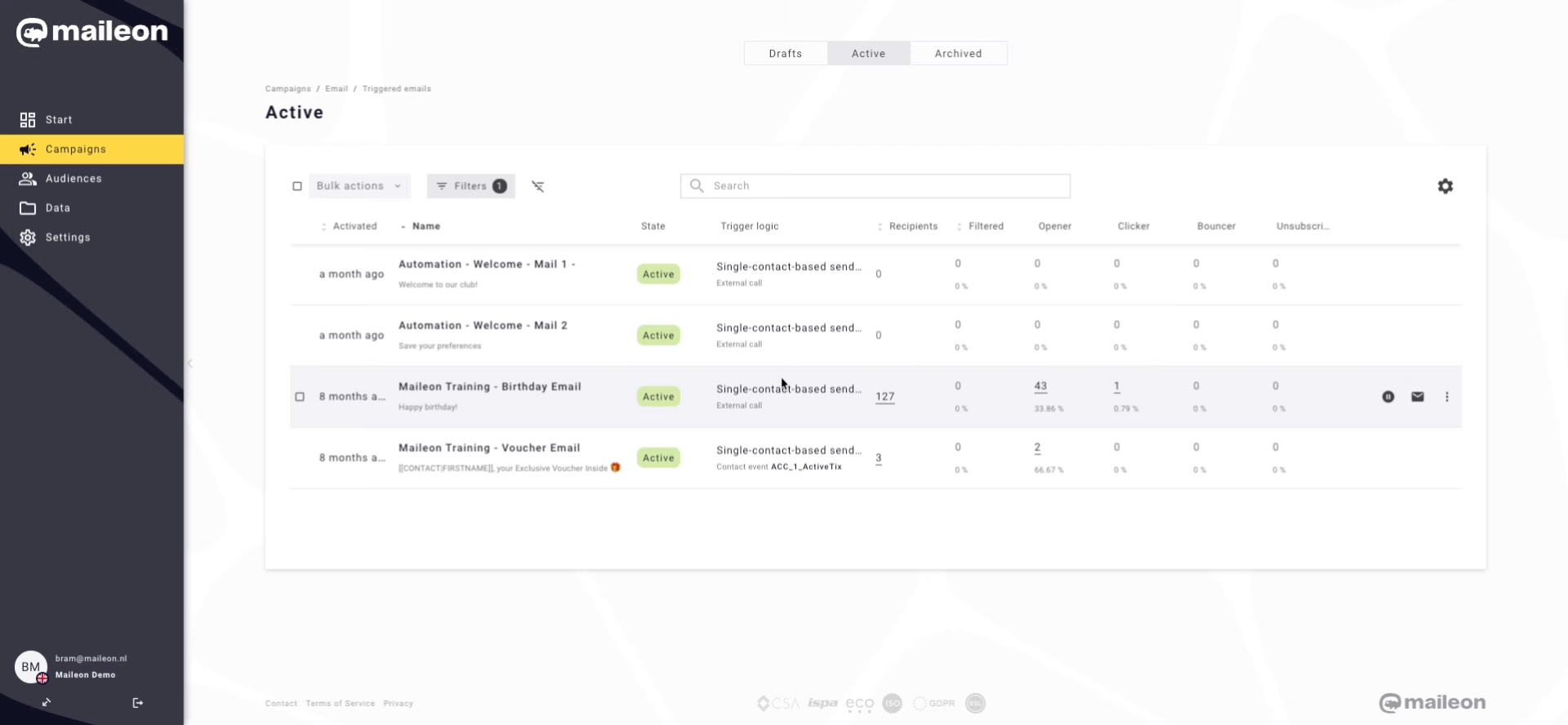
2. Open Birthday Email Campaign
Click "Maileon Training - Birthday Email" to open the birthday email campaign you want to version.
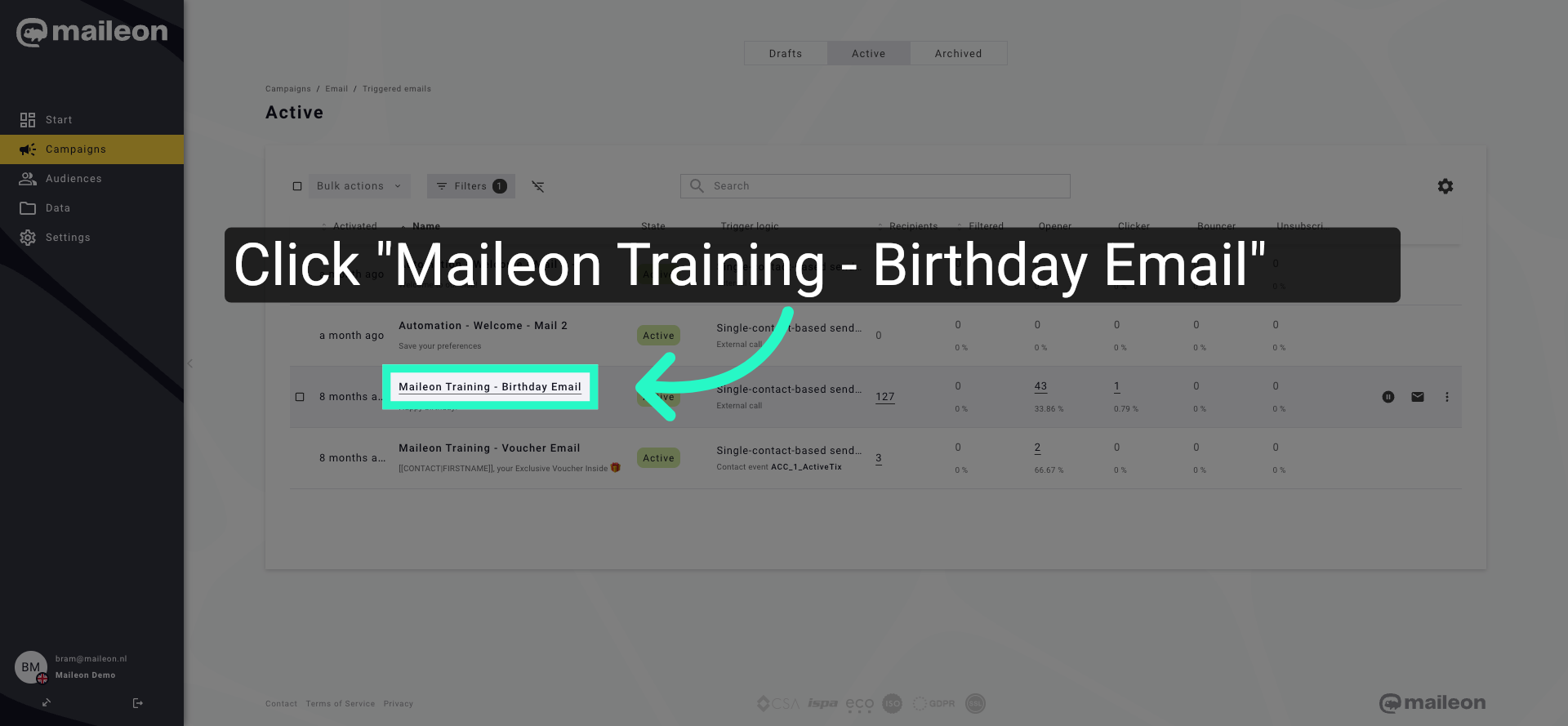
3. Access Versioning Options
Click the indicated area to access the versioning options for the selected mailing.
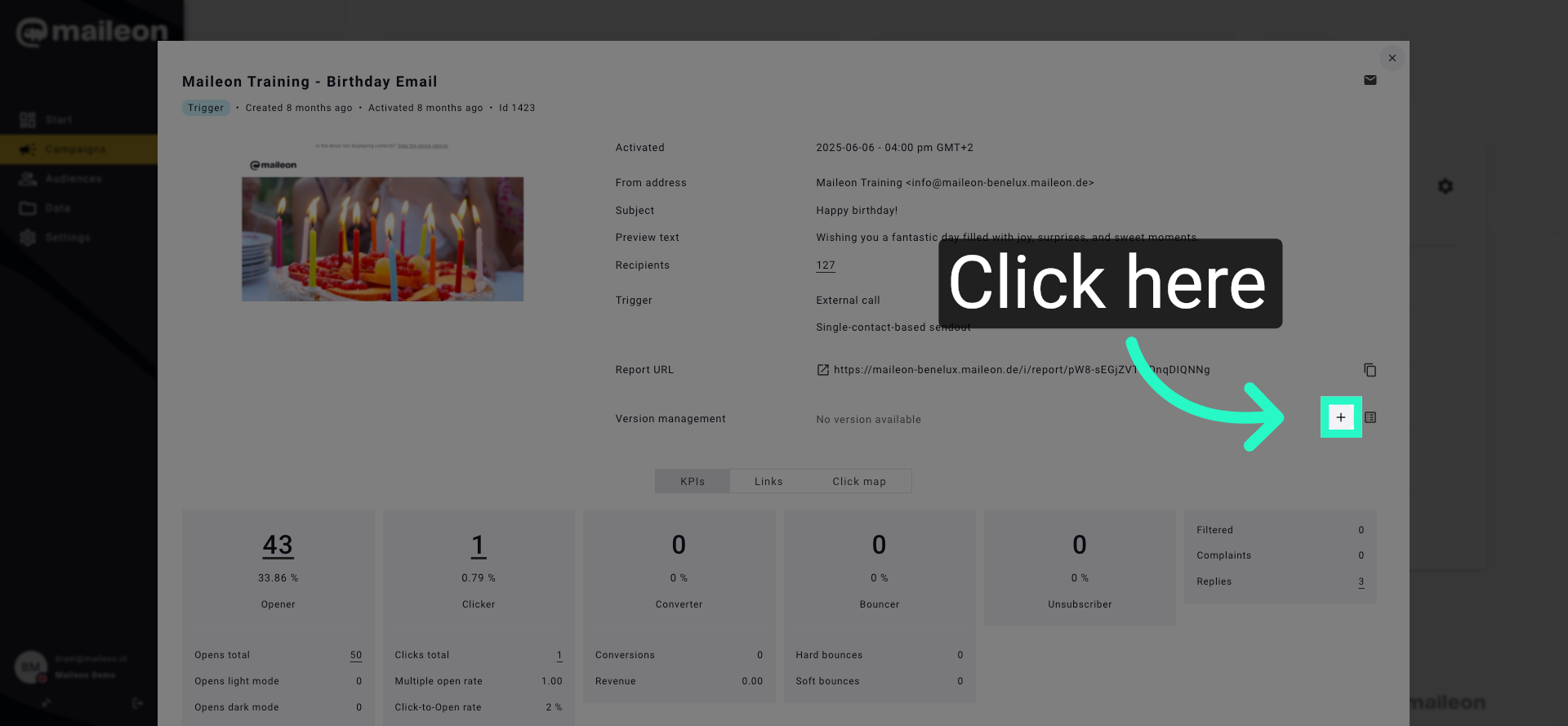
4. Select Specific Mailing Version
Click "Maileon Training - Birthday Email [Version 83U7V1GVUO]" to choose the specific version of the birthday email you want to edit.
5. Open Subject Field
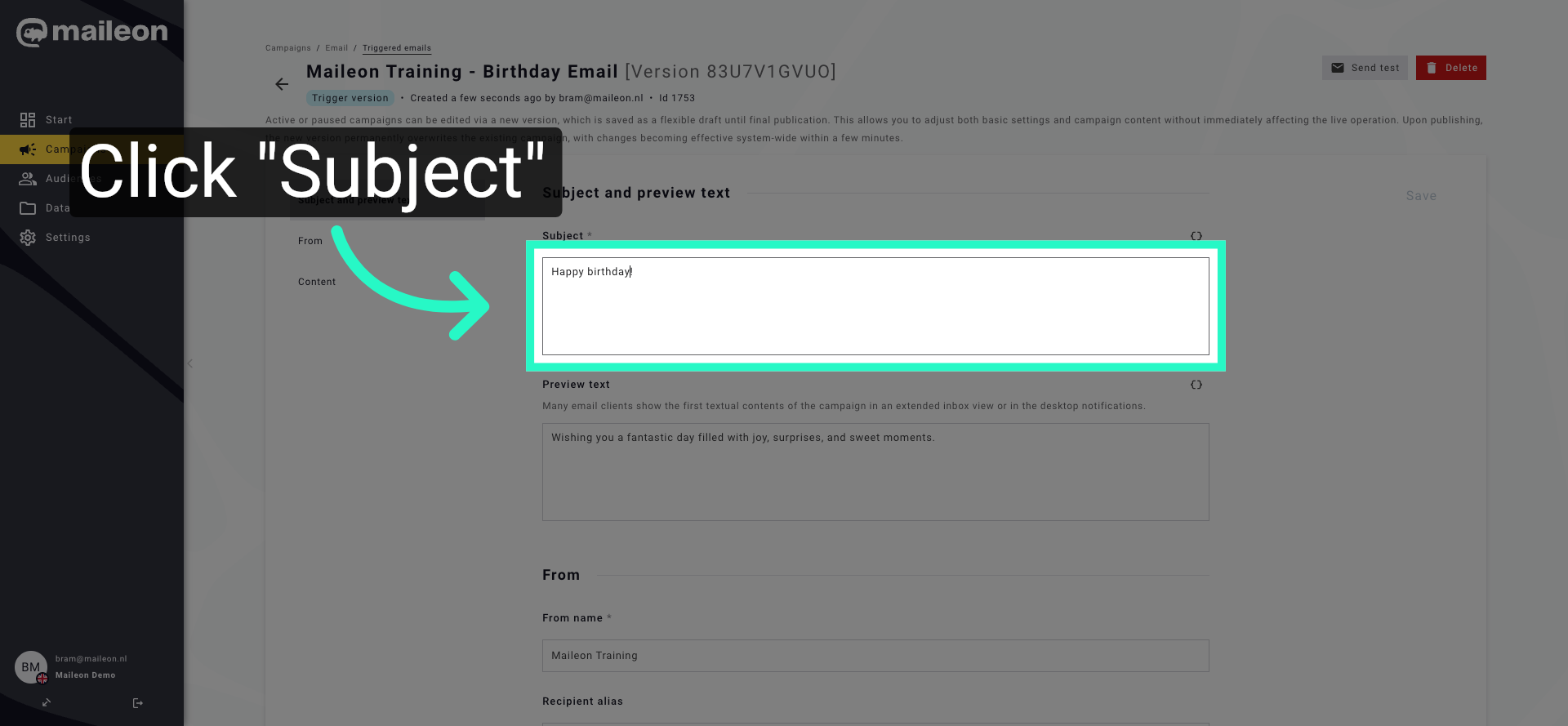
Click "Subject" to edit the subject line of the selected email version.
6. Enter Email Subject
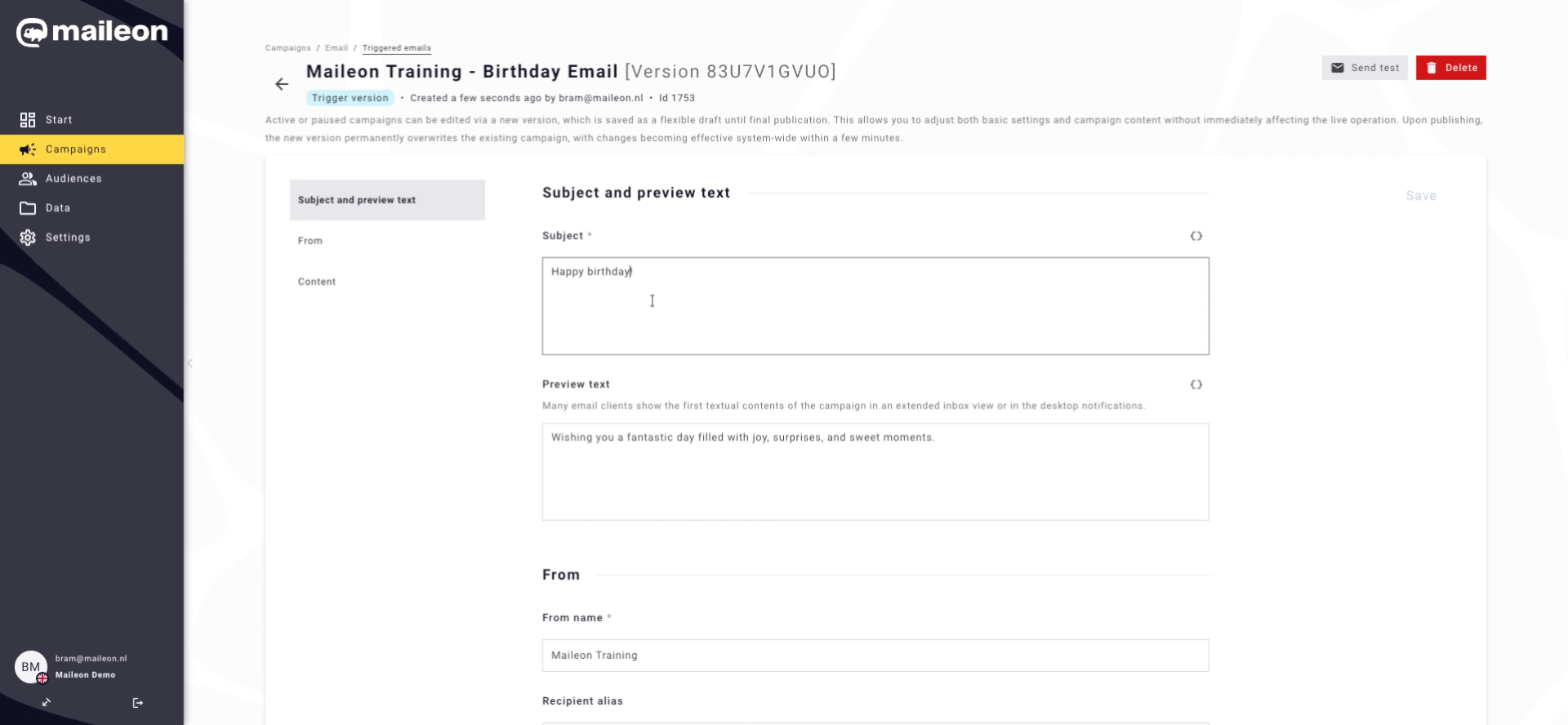
Enter your email subject by filling in the field with "Happy birthday to you!!" to personalise the message.
7. Edit Email Content
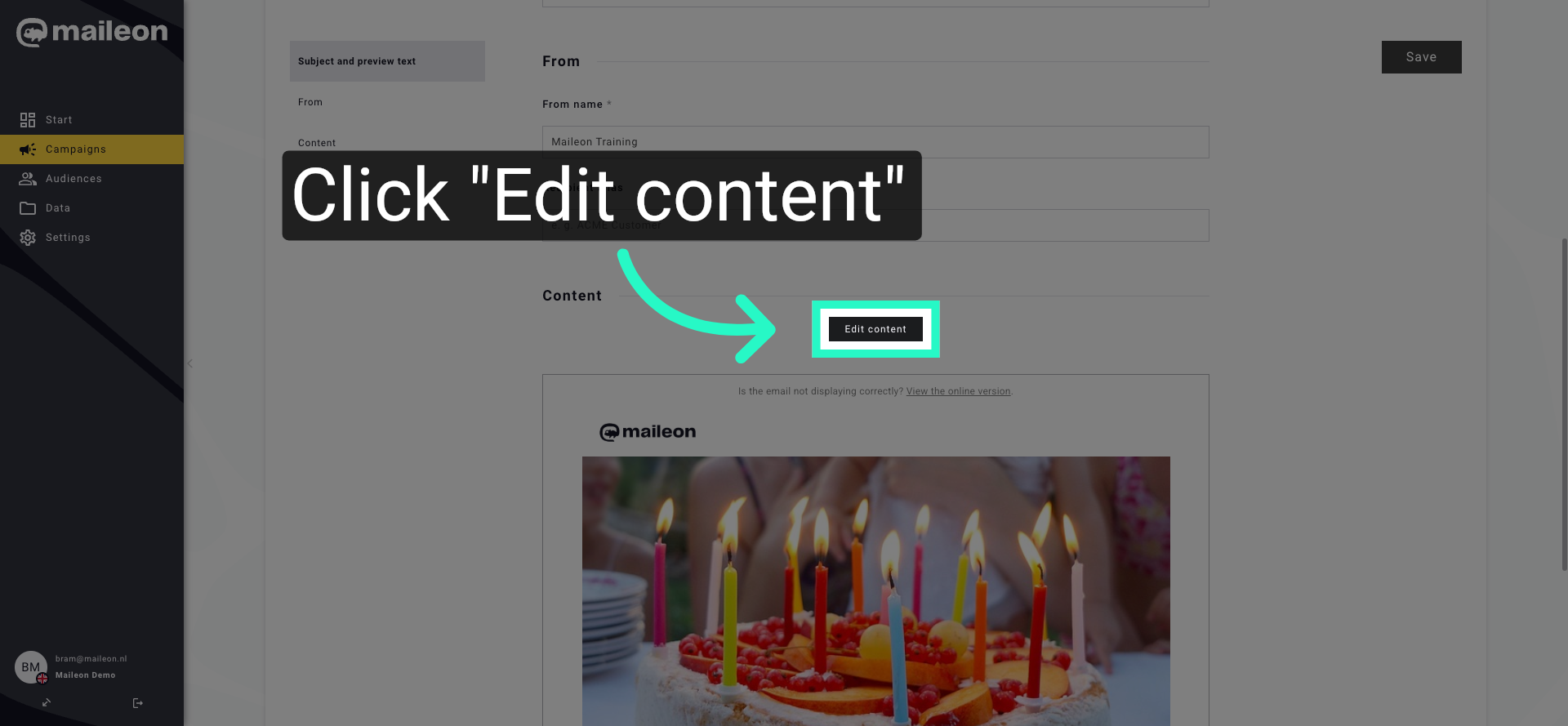
Click "Edit content" to modify the body of the email for the chosen version.
8. Save Content Changes
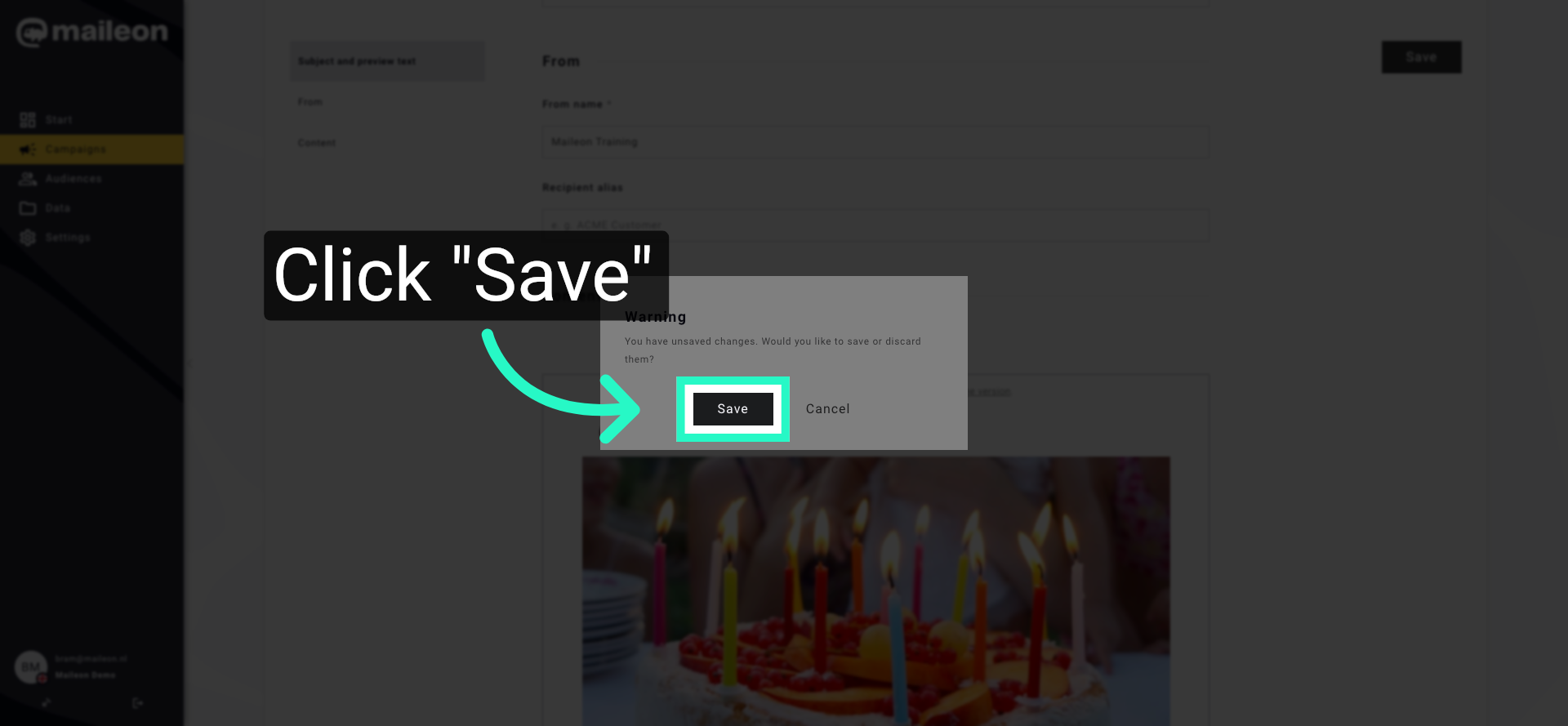
Click "Save" to store the changes made to the email content.
9. Open Content Block
Click the designated area to open the content block for further editing.
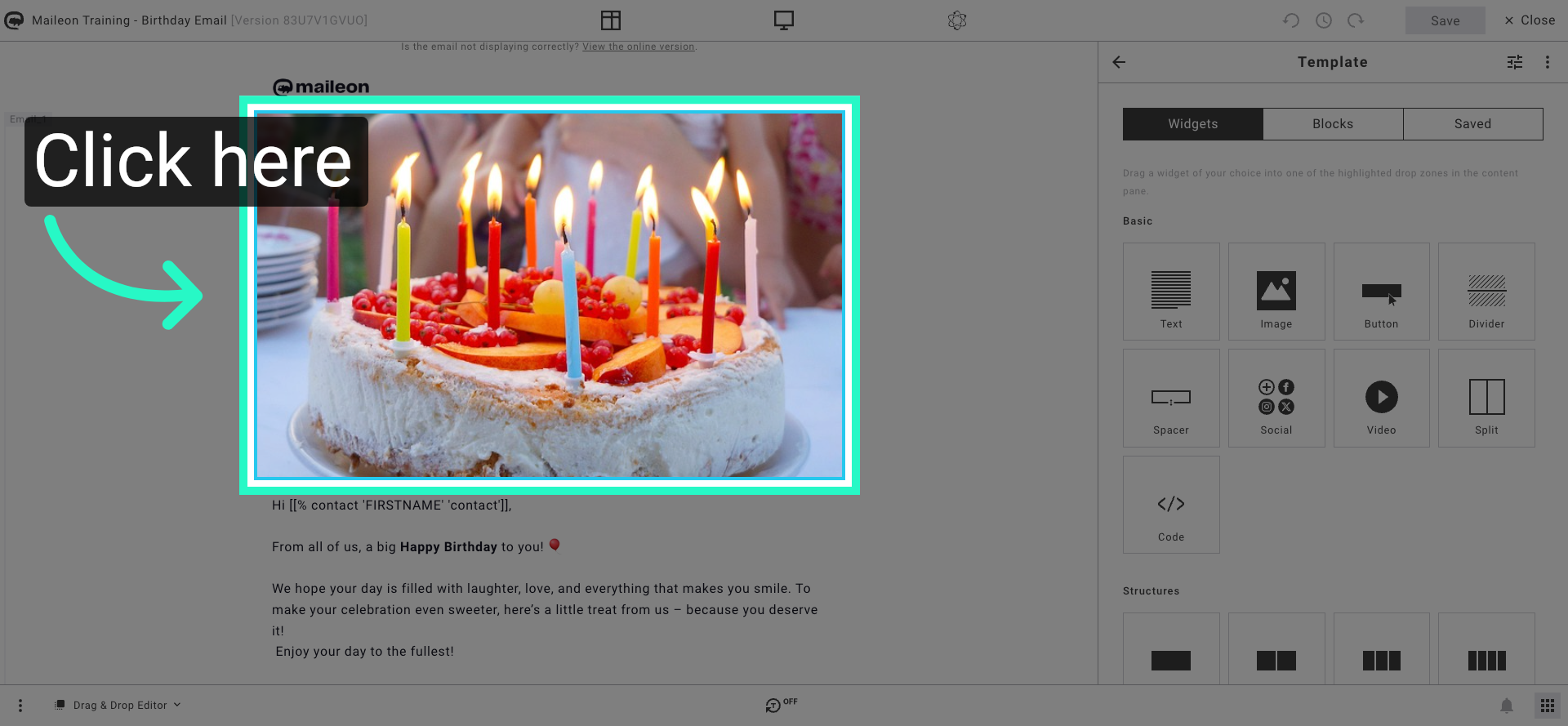
10. Select Birthday Message Block
Click the birthday message block that starts with "Hi [[% contact 'FIRSTNAME' 'contact']],From all of us, a big Happy Birthday to you! ? We hope your day is filled with laughter, love, and everything that makes you smile. To make your celebration..." to edit it.
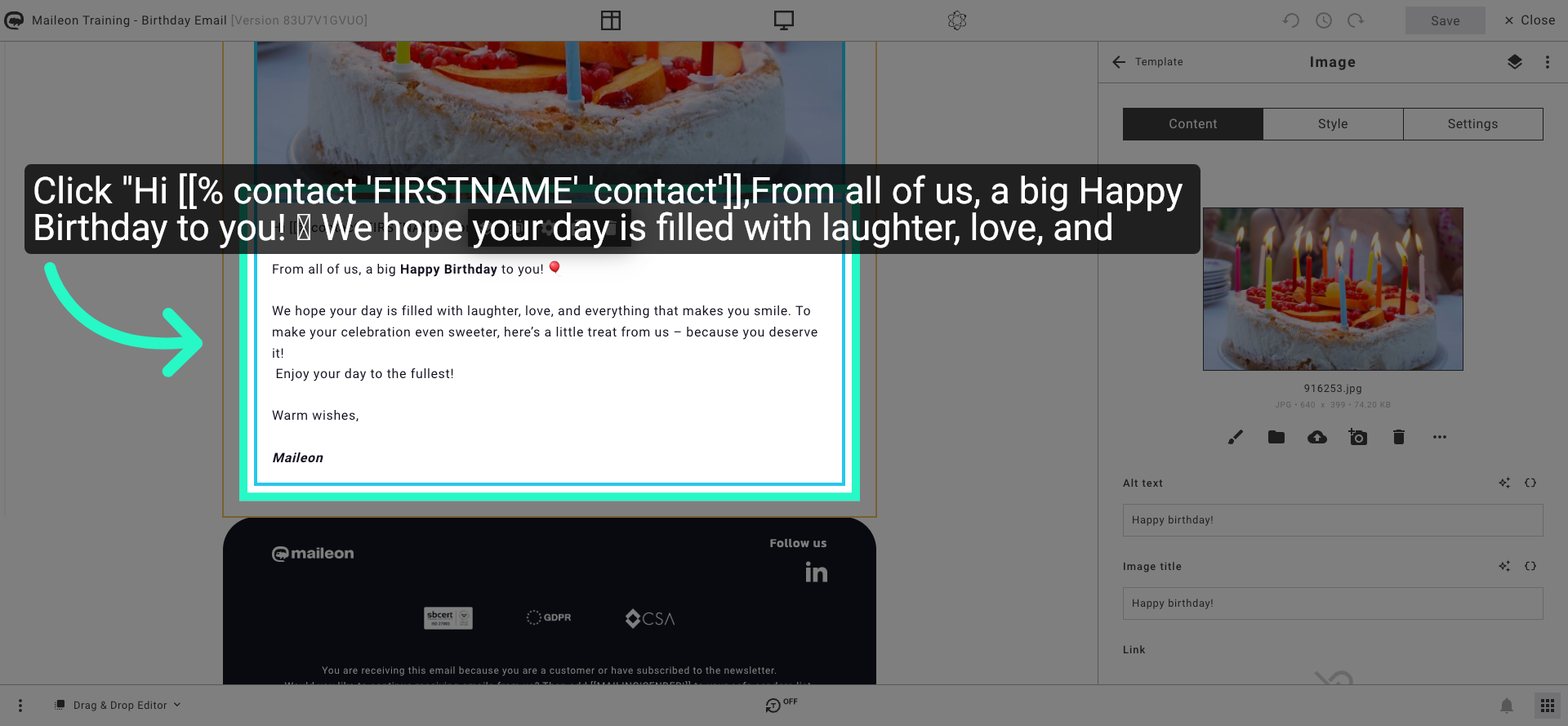
11. Reopen Birthday Message Block
Click the same birthday message block again to ensure it is selected for editing.
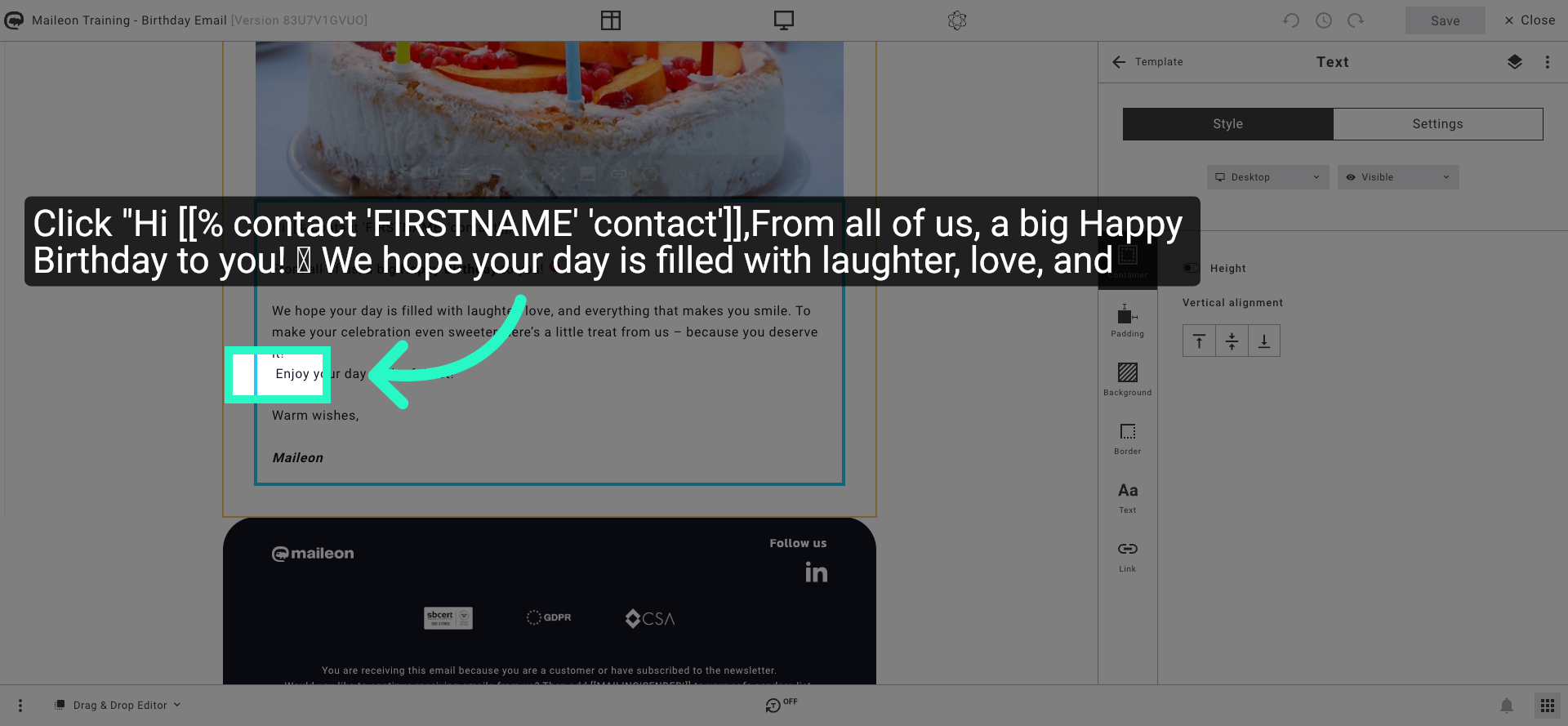
12. Fill Birthday Message Text
Enter the birthday message text by filling the block with the personalised greeting starting with "Hi [[% contact 'FIRSTNAME' 'contact']],From all of us, a big Happy Birthday to you! ? We hope your day is filled with laughter, love, and everything that makes you smile. To make your celebration...".
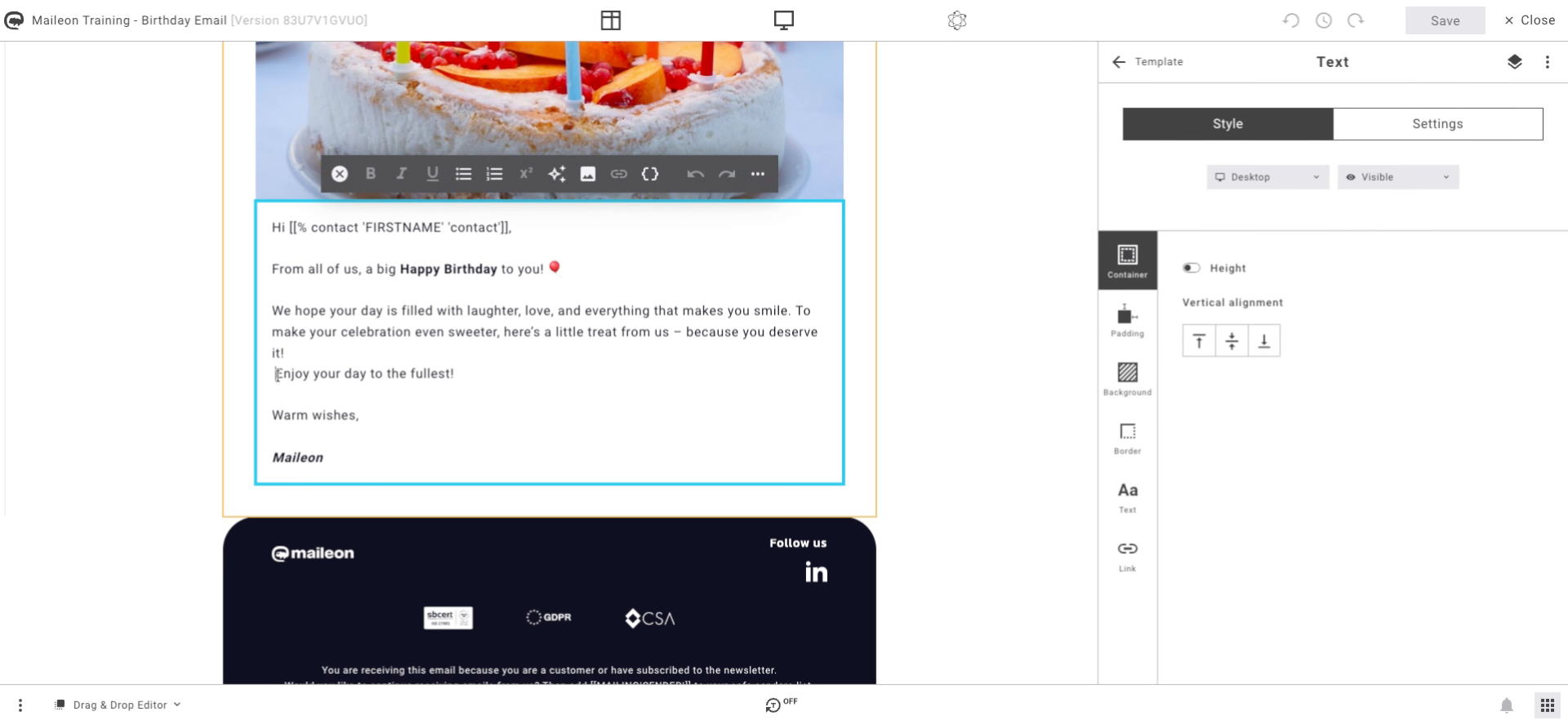
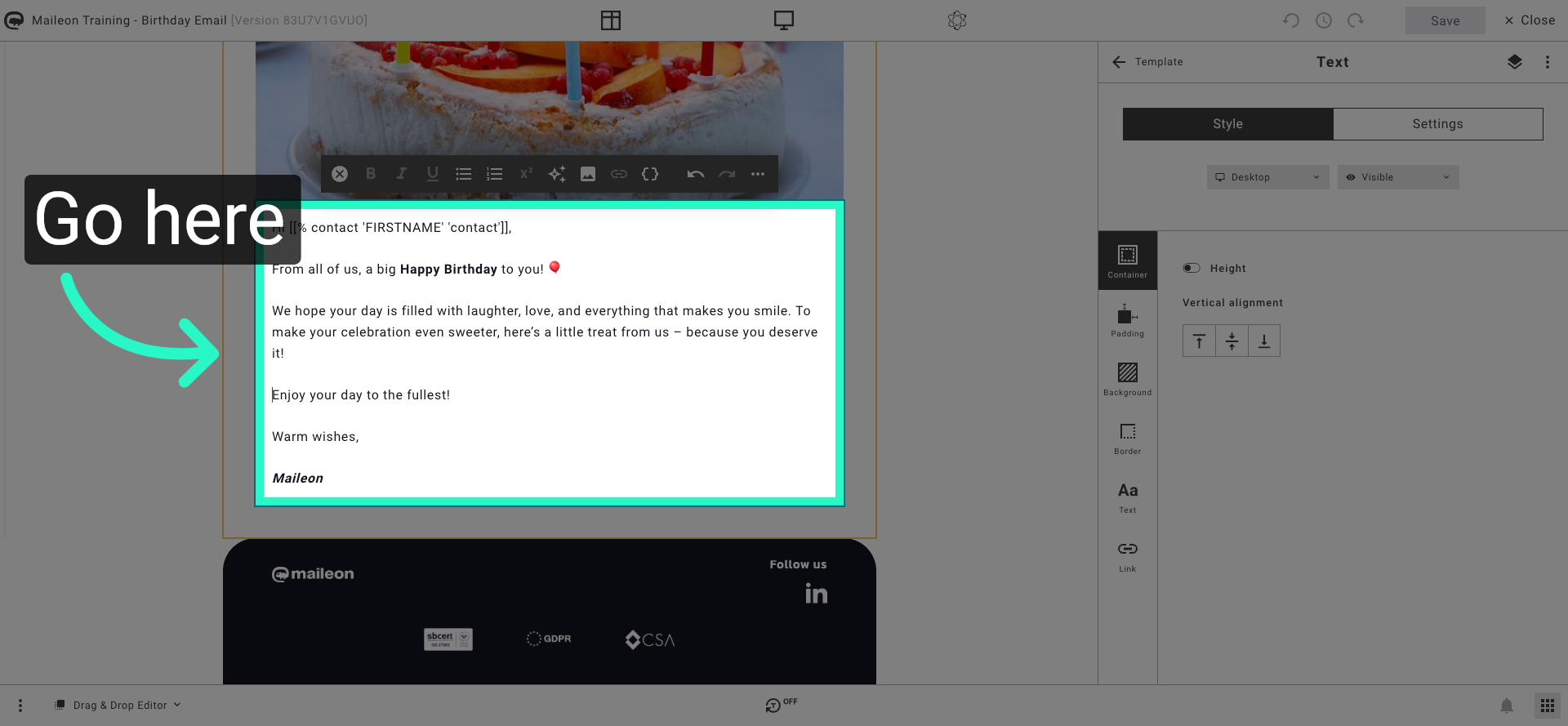
13. Navigate To Content Area
Go to the content area where you can add or modify blocks within the email version.
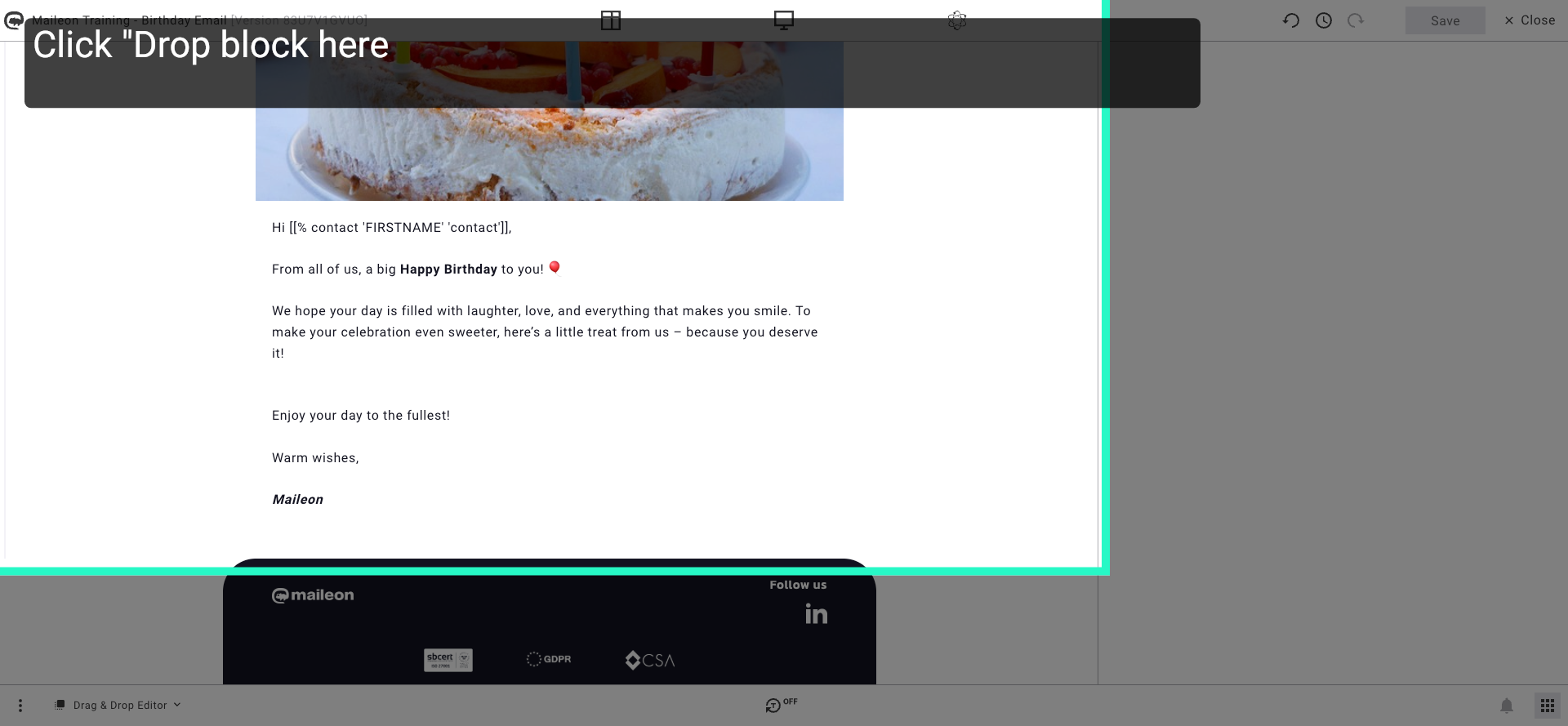
14. Add Content Block
Click the area labelled "Drop block here" to add or adjust content blocks in the email layout.
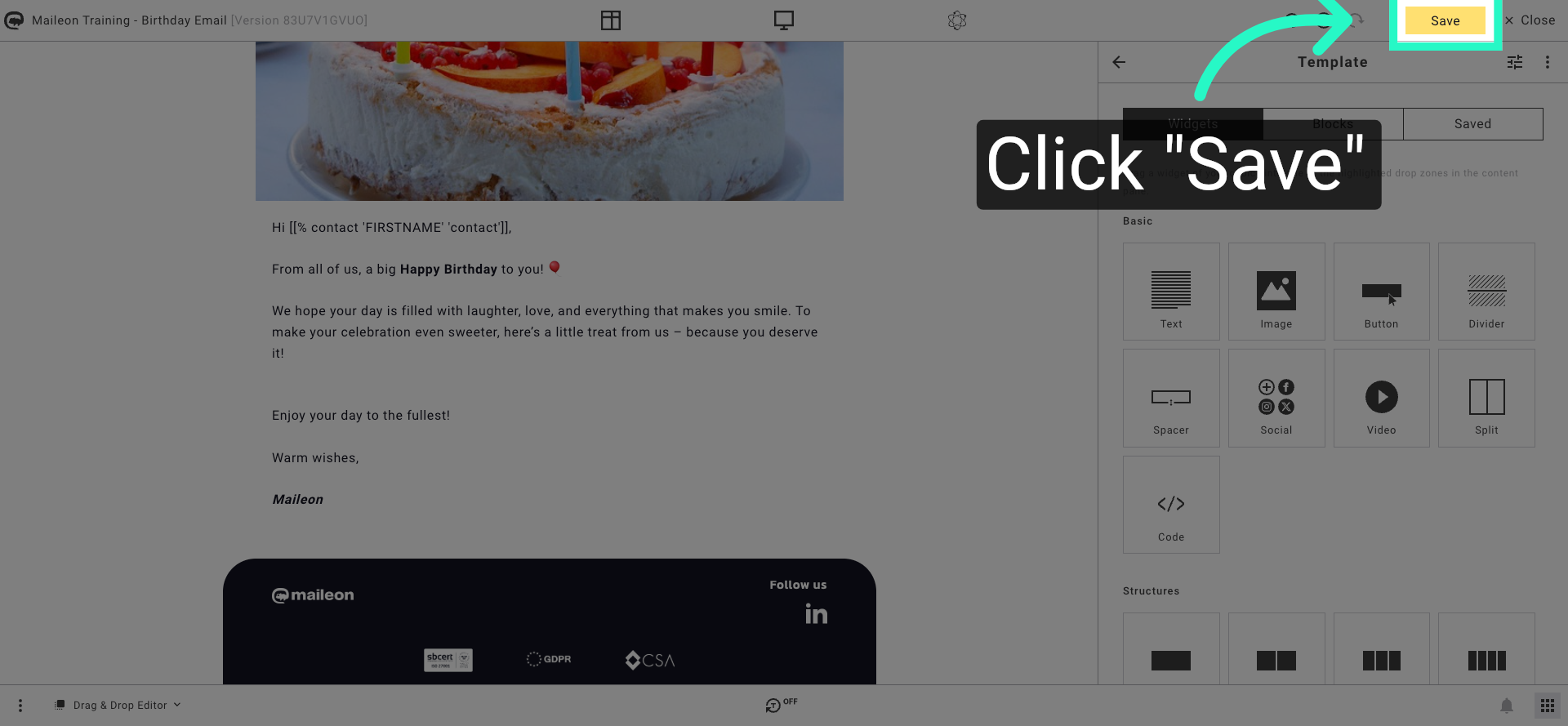
15. Save Block Changes
Click "Save" to confirm and store the changes made to the content blocks.
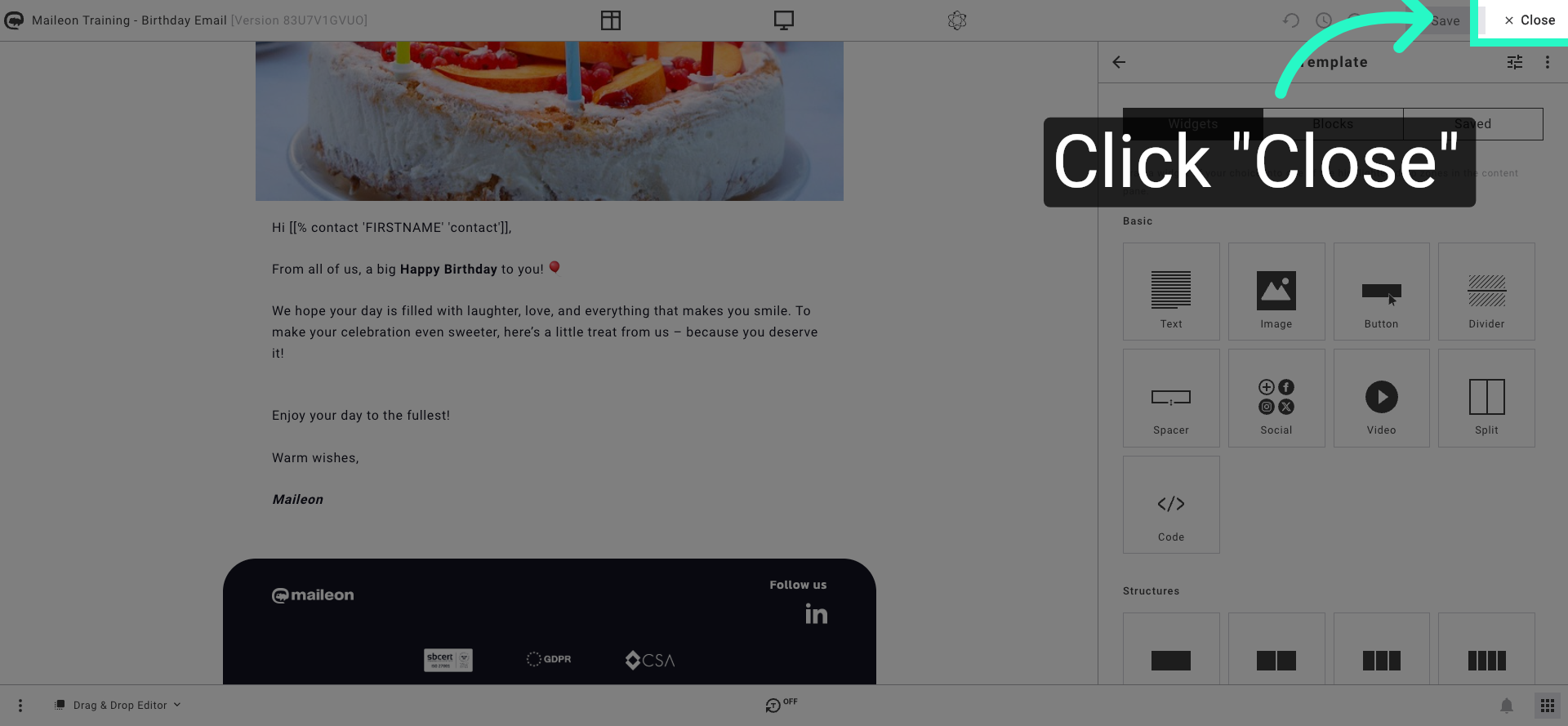
16. Close Content Editor
Click "Close" to exit the content editor and return to the main versioning interface.
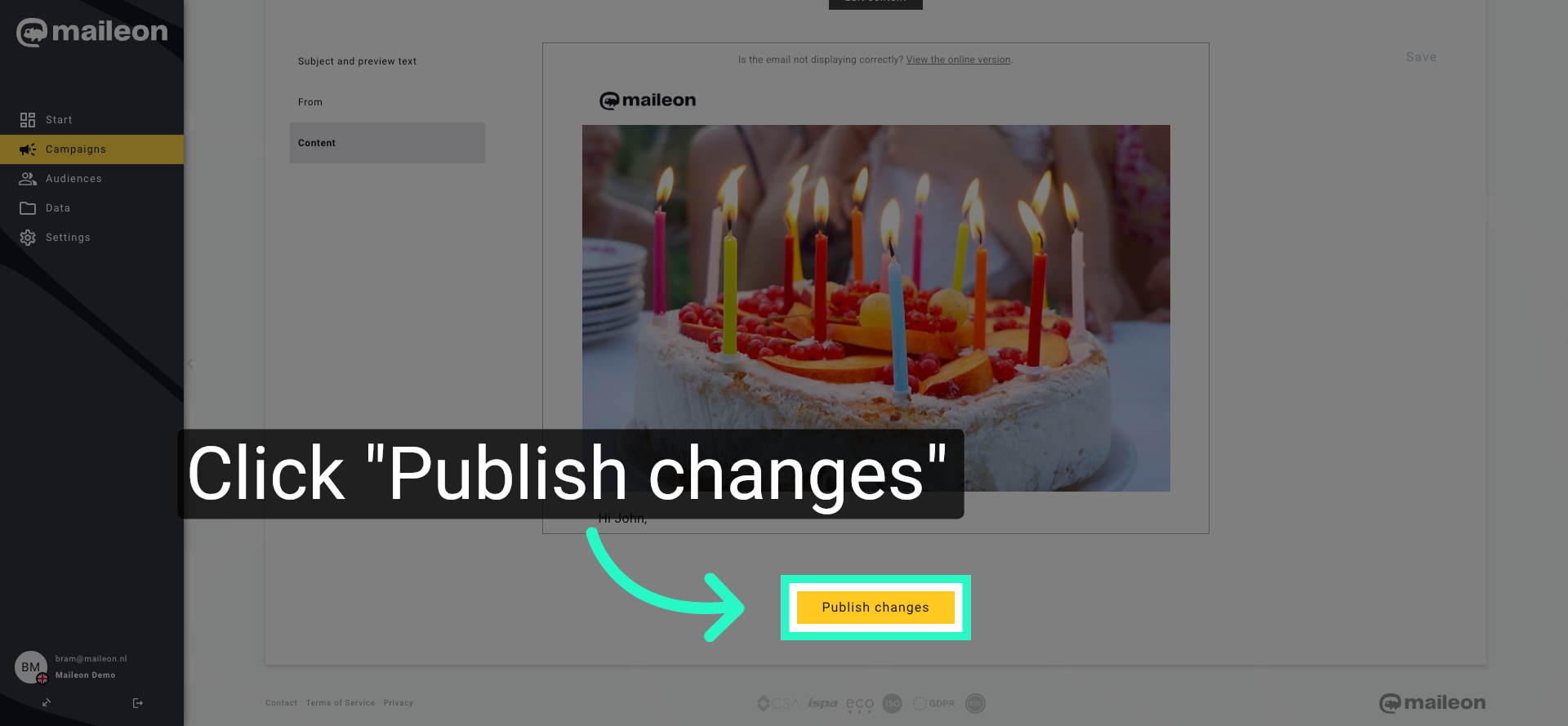
17. Publish Version Changes
Click "Publish changes" to apply and make the edited version live.
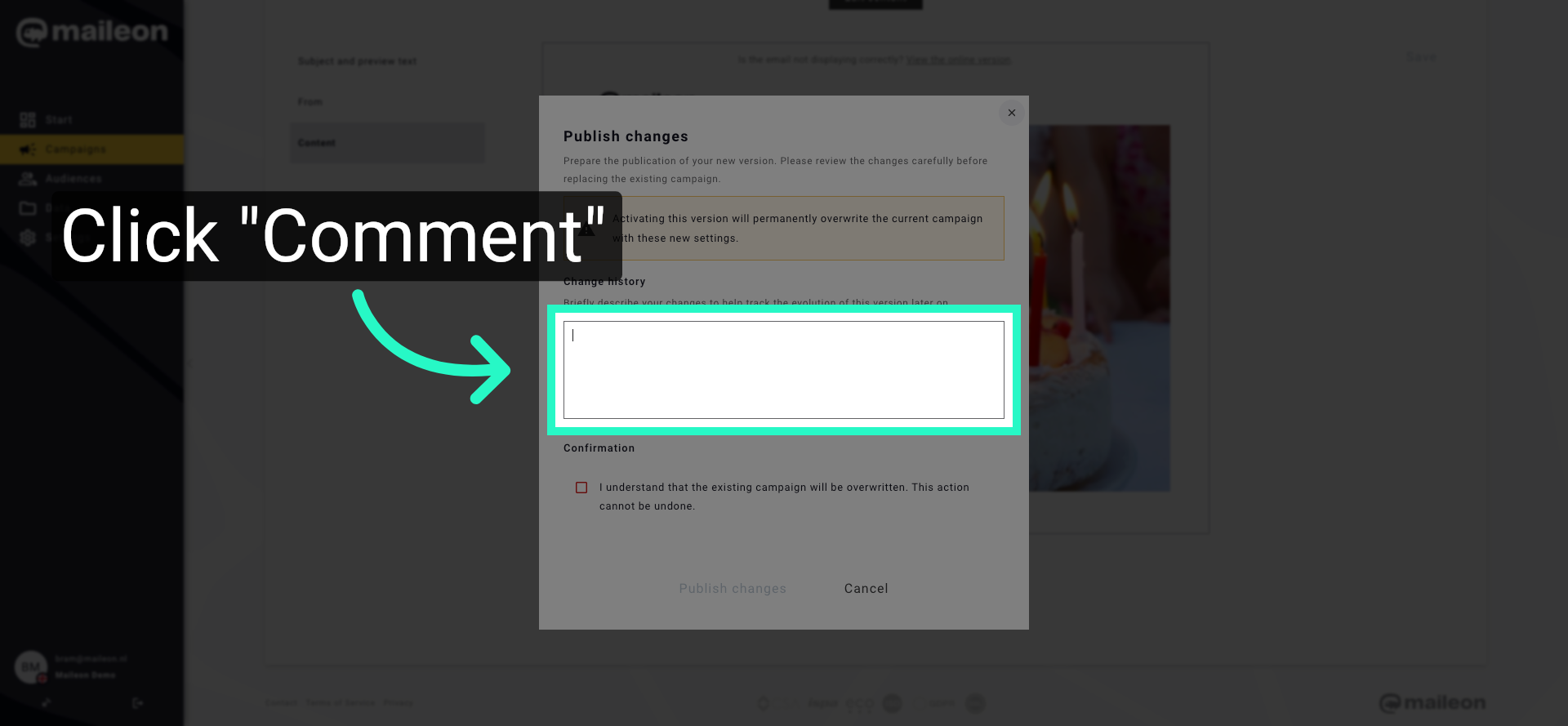
18. Open Comment Section
Click "Comment" to add notes or explanations about the changes made to this version.
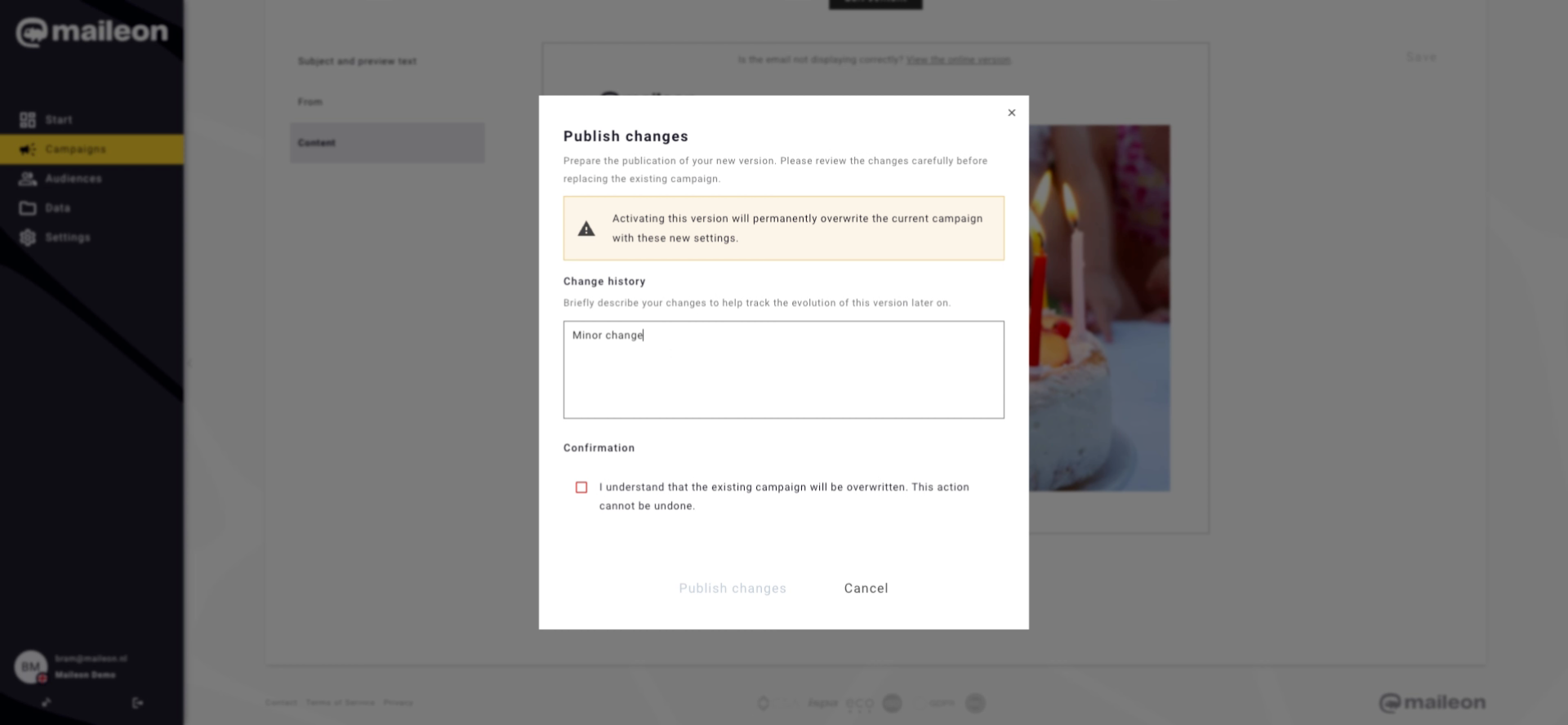
19. Enter Change Comments
Enter the comment "Minor changes to title and text." to document the updates made in this version.
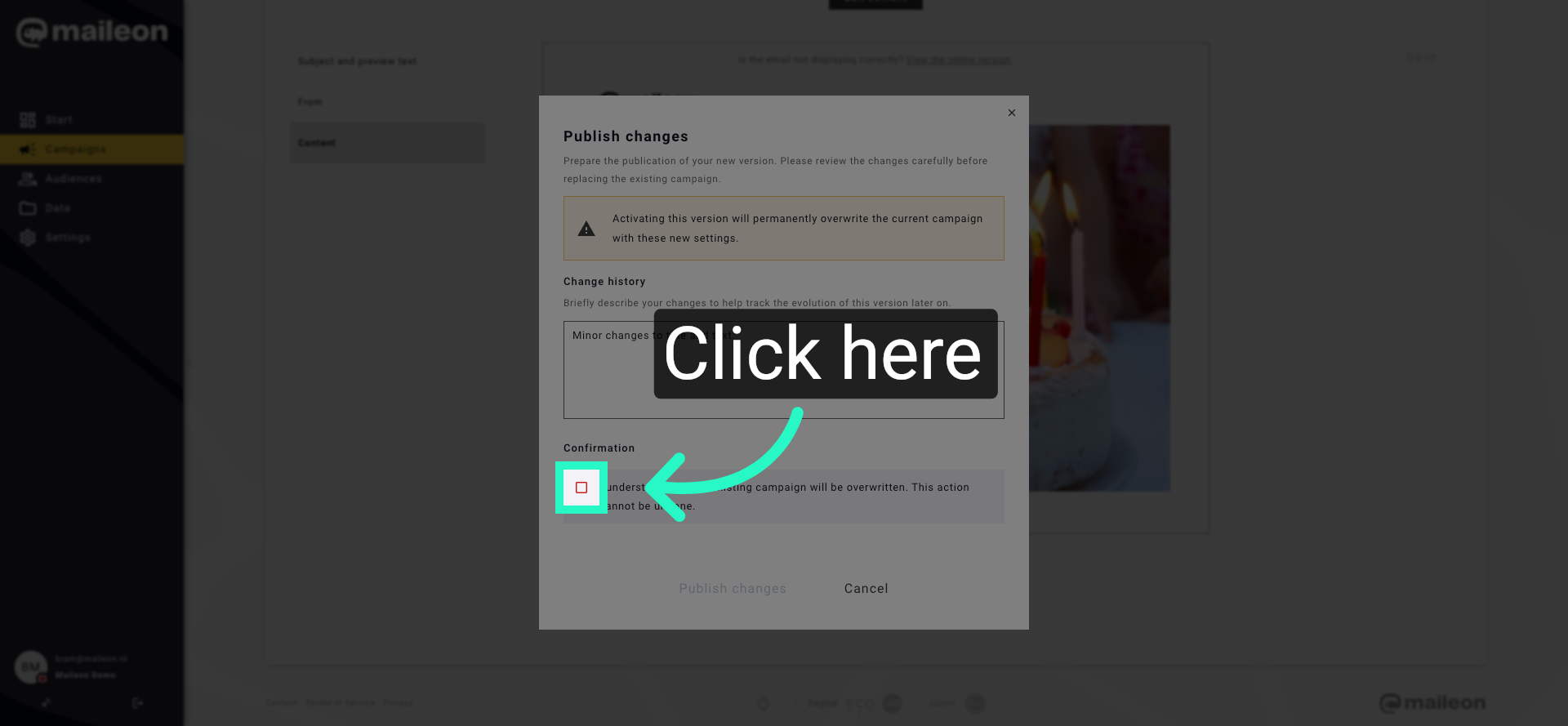
20. Confirm Comment Entry
Click the indicated area to confirm and save your comment on the version changes.
21. Finalise Publishing
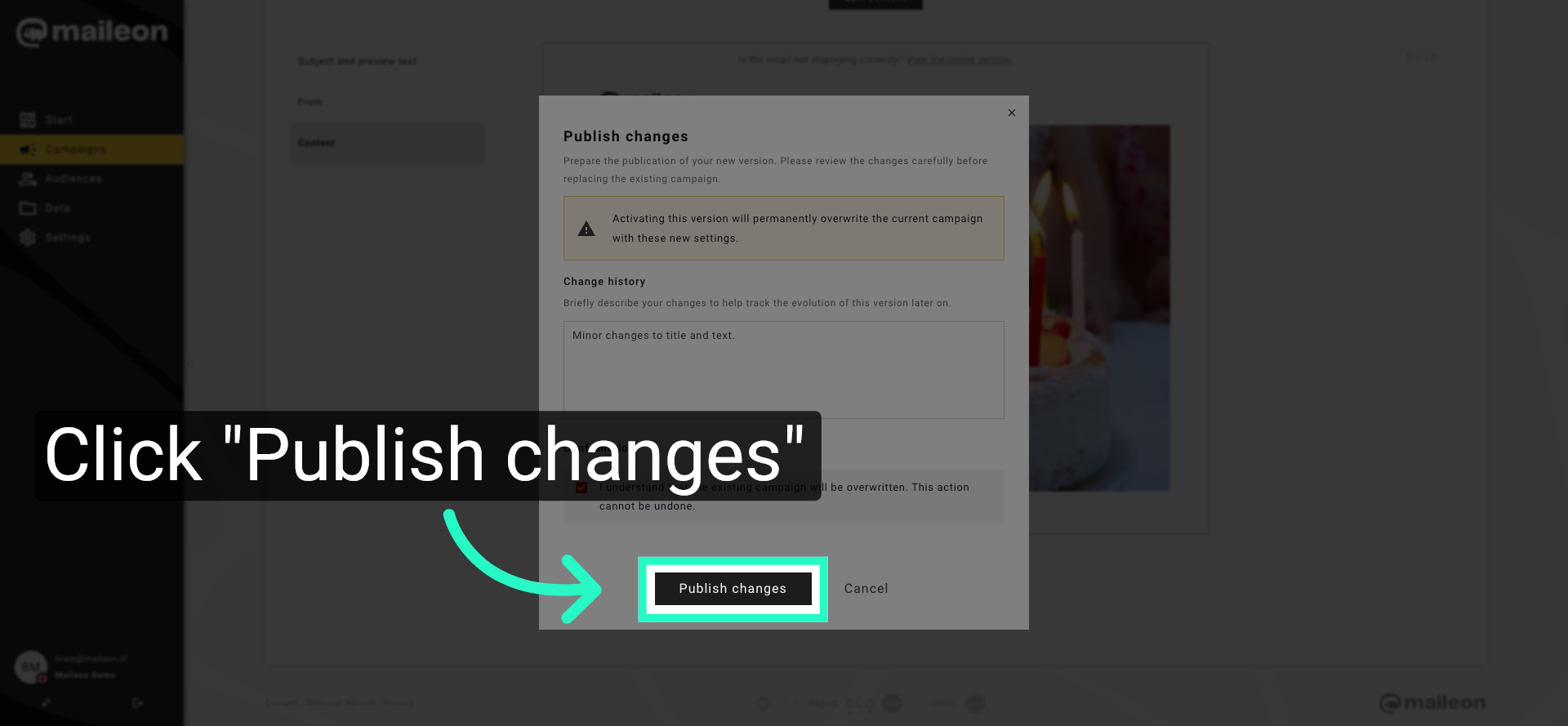
Click "Publish changes" to complete the version update and make it available for use.
You have successfully used versioning to edit and publish a trigger mailing in Maileon. This process ensures your birthday email campaign is updated with the latest content and ready for delivery. For further customisation, explore additional versioning features or consult Maileon's support resources.